Product Modifiers and Submodifiers
NOTE: If you make a change to modifiers in the Back Office it will automatically update in 1 to 3 minutes to the POS, depending on your Internet connection. If want to see changes faster, go to the Rezku POS app Settings (gear icon) and tap the Refresh Settings button.
Ordering a Product With Modifiers
- When you select a product with at least one required modifier, the Choose Modifiers screen will appear.
- To select a modifier; tap the button and (as long as the maximum is not already selected) it will appear on the list to the right.
Choose Modifier Screen Example:
- Required modifiers are indicated with a red asterisk (*). Products can not be added to the order without first selecting all required modifiers.
- The Previous and Next buttons in the bottom right of the Choose Modifiers screen can be used to step through each of the required modifiers.
- The required modifier group will animate to show you which selection needs to be made.
Choose Modifiers Screen with Previous and Next buttons:
- If submodifiers are available for a selected modifier, you will see them appear on the screen for selection.
- Note: There are multiple Submodifier presentation styles, which are shown in the Submodifier Styles section of this article.
This example shows the (default) Popover Submodifier style
- Default modifiers are modifiers that are pre-selected for the product. To remove a default modifier tap the button to deselect the default modifier. On the right you will see "NO [modifier]" added to the order.
Example of default modifiers removed from the product:
- Tap the Finish button in the bottom right corner of the modifiers screen to commit the changes and add the product as configured to the order.
Identifying the location of the Finish button:
Changing Modifier Selection
If there are no required modifiers for the product, the Choose Modifiers pop-up screen will not appear.
- Tap the product name in the order product list on the left side of the screen to edit the product.
- From here, you can change selected modifiers, quantities and add notes.
Indicating the Edit Order Product Screen:
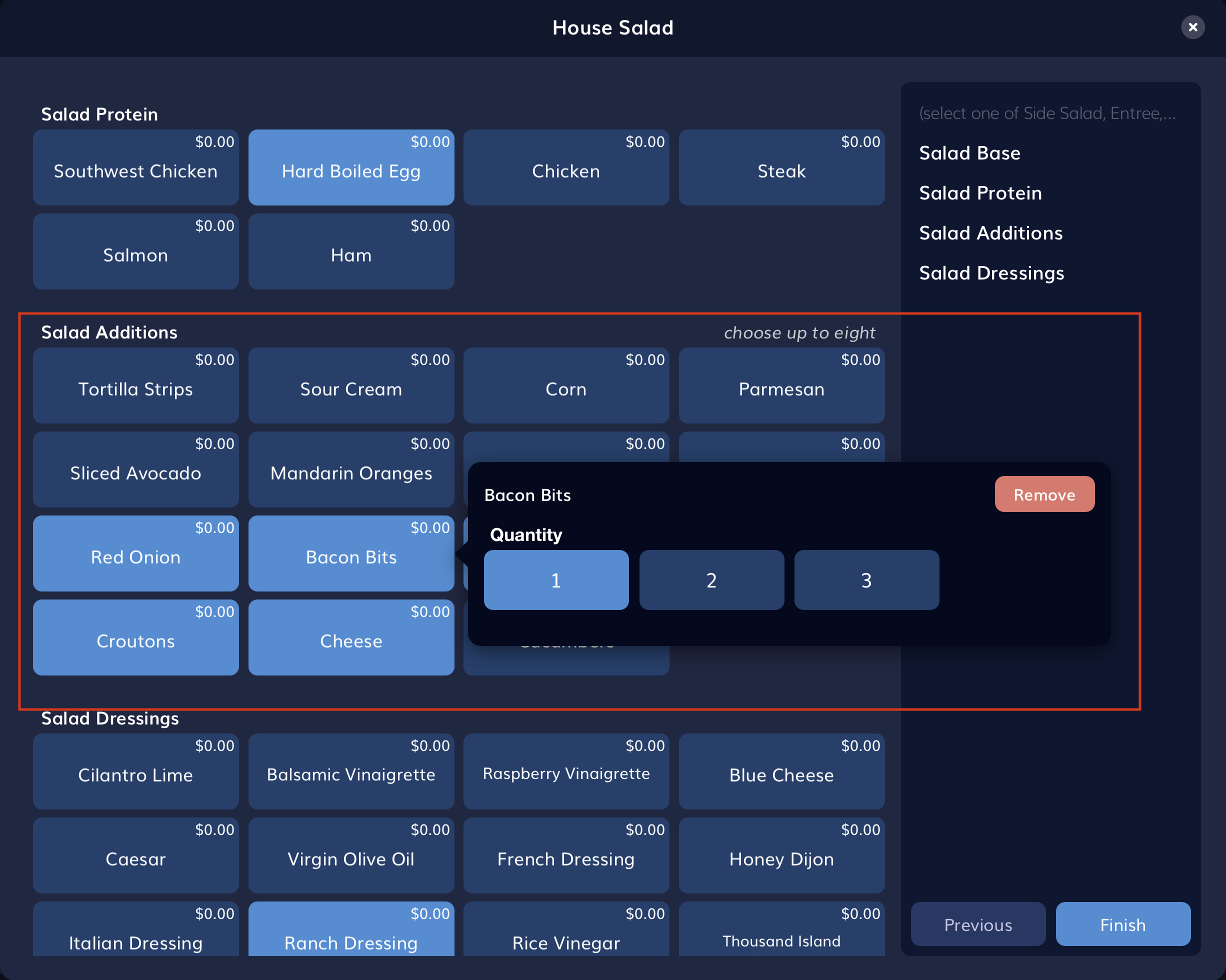
Selecting Modifiers with Quantity Enabled
- If "Use Modifier Quantities" is enabled for a modifier group in Back Office you can tap the product to select the quantity.
- This function is used for customers who want "extra". For example "double bacon bits" on their salad.
Example showing modifier quantiles:
 Pizza Mode Modifiers
- When Pizza Mode is enabled for a modifier group, you can choose whether the topping is applied to the whole, first half or second half for the product.
- Tap the modifier button and you can select the placement from the popup.
- You will see the placement listed for the modifier on the right of the screen, once selected.
Example indicating Pizza Half Modifier function:
Submodifier Styles
When submodifiers are available for a modifier it can be displayed in one of three ways.
- Popover -- The default style; a box with large target buttons appears for servers to make a selection.
* Option -- A slimmed-down ribbon shows the options available for selection below the modifiers
- In-line -- This style places the submodifier choices at the bottom of the modifier list, using the same style as modifier groups.
Related Articles
Ordering With Variants
Variants Variants allow you to choose a version of the main product. The price of the product is based on the variant. Variants can also change the price of associated modifiers. This is especially applicable to conversational ordering with Pizzas, ...How to Take an Order
The New Order Screen Getting Started Enter your PIN to unlock the system. The default screen after entering your PIN is the New Order Screen On the LEFT side of the New Order Screen is the Order Builder Order Builder -- Where you see the products and ...Coursing
What is Coursing? Some restaurants serve meals in courses, e.g. Apps, Entree, Desert. The guests choose an item from each course before dining and the staff time the food for the guest so it arrives on time. Courses are set up in Back Office > ...Pizza Ordering
Pizza Products Pizza Products are a unique type of product in Rezku POS, specifically designed for the complexities of ordering pizza. Pizza Products are created in Back Office and, when available, introduce a unique order flow that is described in ...Configuring POS Printers
Printer Configuration Settings To configure printers, tap the Gear icon to open settings. Tap configure printers. Green (connected) indicates at least one printer is connected. To view the status of all printers tap the configure printers button. ...