Rezku POS App Settings
Settings (Gear Button)
To access settings tap the gear button at the top left of the POS from either the Ordering screen (new order) or the Orders (tickets) screen.
Settings Screen Tour
Top Right
Share screen with support - Tap here to start a remote viewing session with technical support
Open Back Office - Launch the Back Office management portal
App version - Displays the current version of Rezku POS installed
Register name - The name this register is assigned in your venue template
Connections
Internet - Indicates status of your internet connection
Bluetooth - Indicates whether Bluetooth is turned on and permission is granted in iPad settings
Printers - Indicates status of printer connections
Card Readers - Indicates status of card reader connection
CFD(Customer Facing Display) - Indicates status of CFD connection
Settings
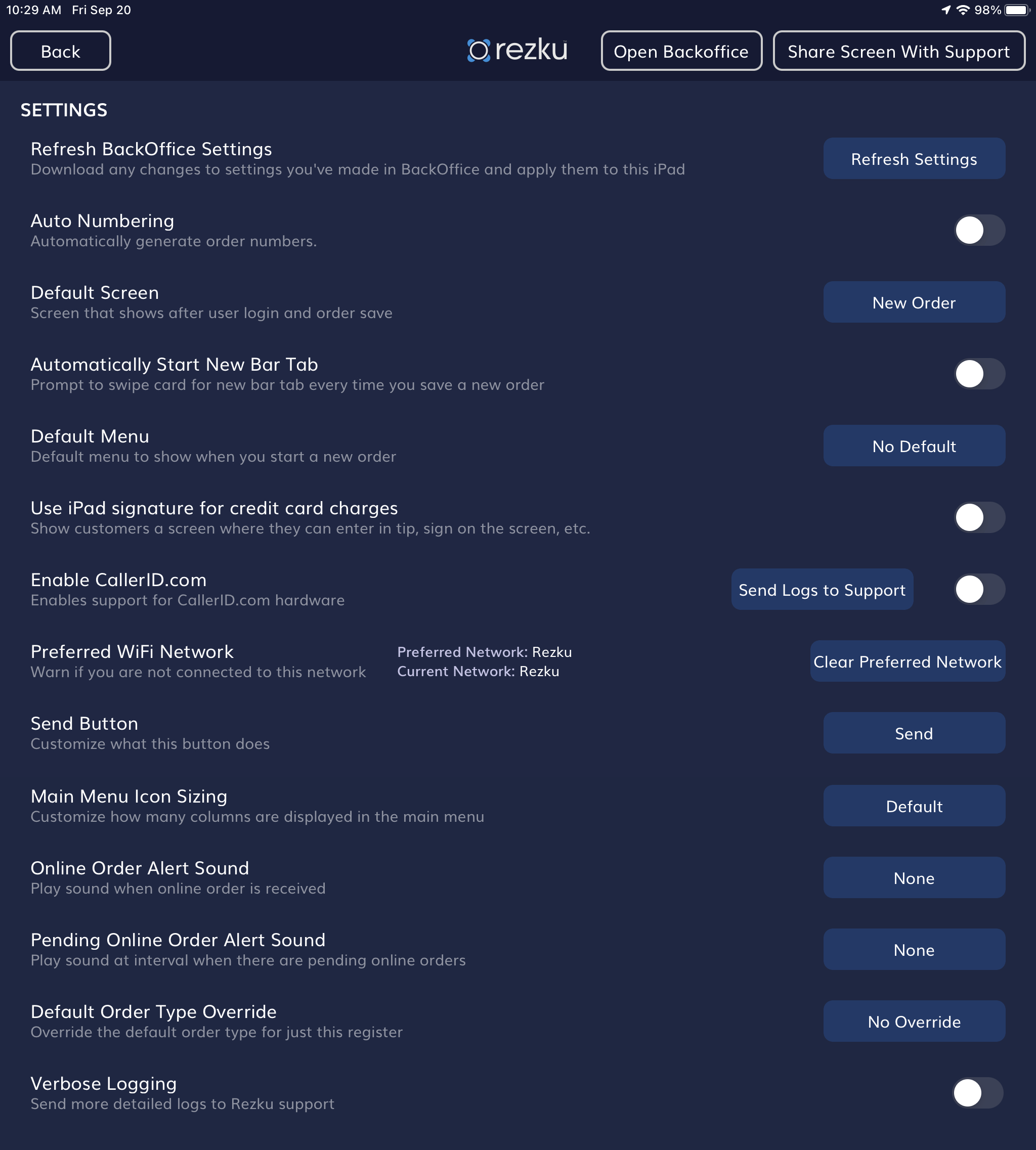
Refresh Back Office Settings -- Download the latest changes made in Back Office
Auto Numbering -- When enabled, new orders are given a sequential number. Enter a unique range per iPad or use sequential numbering to sync with KDS systems.
Default Screen After Login -- Select the POS screen that is shown after employee PIN entry.
Automatically Start New Bar Tab -- When enabled, the POS prompts users if they would like to open a tab with every new order.
Default Menu -- Choose which top-level menu to display by default for new orders
Use iPad signature for credit card charges -- When enabled, customers authorize credit card payments on the iPad. When disabled the receipt printer prints a credit authorization slip for the customer to sign, or if CFD is enabled or AMS-1 is connected, signature will be performed on those devices respectively.
Enable CallerID.com -- For use with caller ID hardware. -- Send Logs to Support button is for sending logs specifically for troubleshooting callerID.
Preferred Wi-Fi Network -- Set the POS network to show a warning if the iPad is switched to the wrong (non-POS) network.
Send Button - There are three options for how the send button works. The send button is used to send products from an order to the kitchen.
Send -- Default behavior. Tap the send button below the order builder to send any unsent products to the kitchen.
No Button -- Remove the send button for concepts where this is not used. For example, for bartenders.
Send & Hold -- Selecting this option turns the send button into "Send & Hold". Unsent products will be sent to the kitchen and the ticket is held.
Main Menu Icon Sizing -- Choose the menu product tile size to be larger or smaller.
Online Order Alert Sound -- Set an alert chime for when a new online order is received by the POS.
Pending Online Order Alert Sound -- Set an alert chime for when a there are pending Online Orders.
Default Order Type Override -- Set a default order type locally for use in restaurants where POS stations are dedicated to a specific order type. (Eg. bartenders use "Bar" while servers use "Table").
Verbose Logging -- When sending logs to Rezku, include more details. You don't need to turn this on unless instructed by Rezku Support.
Menu icon sizing screen:
Energy Saver
These settings adjust how often the POS connects to the attached card reader, extending battery life for the tDynamo.
- Employee Login With ID Card Swipe -- When enabled, the POS will stay in constant communication with the card reader when on the POS lock screen to make it ready for ID card swipes.
- Automatically Activate Card Reader for ID Card Swipes -- When enabled, the POS will connect to the card reader to make ready for ID card swipes when prompting for a manager's override PIN.
- Automatically Activate Card Reader for Credit Card Swipes/EMV -- When enabled, the POS is ready for card input at the checkout screen. When disabled, cashiers must tap the Credit Card payment type button to activate the reader.
Offline
- Offline Mode - Enable offline mode to store credit card payments until internet service is restored.
- View Offline History - View stored transactions and monitor the status when internet is restored to confirm they have been processed.
Log Out
- Log out - Logging out of this register disables it until you contact Rezku Technical Support to receive a new activation code.